
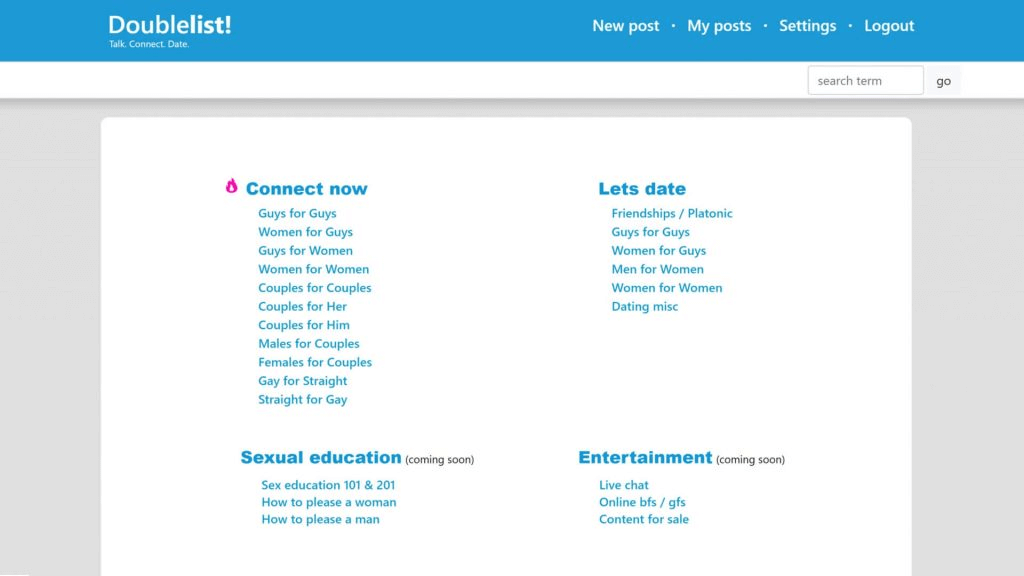
| Quick Answer Go to doublelist.com → click Log In (top right) → enter email + password → complete phone verification if prompted. New user? Click Sign Up, enter email + password + verify phone number. Takes under 3 minutes. |
Doublelist is one of the most active free personals platforms in the US, and login issues are among the most common search queries about the site. This guide consolidates every login and account-access question into one resource — from first sign-up through to account security best practices.
→ New to Doublelist? Read our full platform review first to understand what to expect.
How to Log In to Doublelist.com — Step by Step
The login process is straightforward on both desktop and mobile:
- Open doublelist.com in your browser (desktop or mobile).
- Click the Log In button in the top-right corner of the homepage.
- Enter the email address you registered with.
- Enter your password.
- If logging in from a new device or after a period of inactivity, Doublelist may prompt phone verification: enter your registered mobile number, receive an SMS code, and enter it on screen.
- Click Sign In. You will be redirected to your account dashboard.
If you use the Android app: open the Doublelist app, tap Log In, enter your credentials. The phone verification step applies in the same way.
→ Using the Doublelist app for the first time? See our app review for setup guidance.
How to Create a Doublelist Account (Full Sign-Up Guide)
Doublelist account creation is free and takes approximately 3–5 minutes. Here is the complete process:
- Go to doublelist.com and click Sign Up.
- Enter a valid email address. Use an email dedicated to personals browsing rather than your primary inbox — this protects your privacy.
- Create a strong password. Use at least 12 characters with a mix of letters, numbers, and symbols.
- Enter your mobile phone number for verification. Doublelist will send a one-time SMS code. Enter the code on screen. This step is mandatory — accounts cannot post ads without phone verification.
- Select your city or metro area. This determines which ads you see by default. You can change location later.
- Your account is now active. You can browse all listings immediately and post your first ad.
Phone number requirements
Doublelist requires a genuine mobile phone number. VoIP numbers (Google Voice, TextNow, Skype numbers) are generally rejected by the verification system. If your number is rejected, you will need to use a standard mobile number from a major carrier.
Each phone number can only be linked to one Doublelist account at a time. If you have previously had an account, Doublelist will recognise the number and link to the existing account.
How to Post Your First Ad After Signing Up
- Log in and click Post Ad (visible in the navigation bar or homepage).
- Select your category: choose based on your orientation and what you are looking for.
- Write a title: be specific and honest. Titles like ‘Looking for NSA connection in Tampa this weekend’ outperform generic titles like ‘Hey’.
- Write your description: include your age, brief description of yourself, what you are looking for, and any relevant preferences or requirements.
- Upload photos: up to 4 photos per ad. Quality photos significantly improve response rates.
- Click Publish. Your ad will appear in your city’s feed immediately.
Ad tips: Post between 7 PM and 10 PM local time for peak visibility. Refresh your ad every 48 hours — this is free and moves your listing back to the top of the feed. In competitive markets, consider a premium boost for higher placement.
How to Reset Your Doublelist Password
If you have forgotten your password:
- Go to doublelist.com and click Log In.
- Click the ‘Forgot Password?’ link below the login form.
- Enter the email address associated with your Doublelist account.
- Check your inbox for a password reset email. Check spam/junk if it does not arrive within 5 minutes.
- Click the reset link in the email. Links typically expire after 24 hours.
- Enter your new password and confirm it.
- Log in with your new credentials.
If you no longer have access to the email address on the account, Doublelist support can assist — but recovery is slower in this case. Keep your registered email address current.
Fixing Every Common Doublelist Login Problem
‘Incorrect email or password’ error
This is the most common login issue. Causes and fixes:
- Typing error: check Caps Lock is off. Try copying and pasting your email address from your inbox rather than typing it.
- Wrong email: if you have multiple email addresses, try each one. Doublelist will only accept the exact address used at registration.
- Outdated password: if you previously reset your password, use the most recent one. Old passwords are invalidated immediately on reset.
- Solution: use the Forgot Password link to generate a fresh reset.
Phone verification SMS not arriving
Several causes and solutions:
- No mobile signal: check you have active signal or data. SMS can delay on weak signal.
- VoIP number: if your registered number is a VoIP or virtual number, Doublelist may block SMS delivery. Switch to a standard mobile carrier number.
- Carrier filtering: some carriers block short-code SMS. Try clicking ‘Resend code’. If still not arriving, contact your carrier.
- International number: Doublelist’s SMS delivery is most reliable on US numbers. International numbers may experience delays.
Account suspended or banned
Doublelist suspends accounts for policy violations: posting prohibited content, repeated reports from other users, or suspicious activity patterns. If your account is suspended:
- Check your registered email for a notification explaining the suspension.
- If you believe the suspension is an error, contact Doublelist support via the Help page with your account details.
- Note: creating a new account with the same phone number while suspended will not work — Doublelist links suspensions to phone numbers.
Page not loading / blank screen
If Doublelist loads as a blank page or fails to load:
- Clear browser cache and cookies (Settings → Privacy → Clear browsing data in Chrome or Safari).
- Disable browser extensions: ad blockers and script blockers can prevent Doublelist from loading correctly.
- Try a different browser: if Chrome fails, try Firefox or Safari.
- Check on a different device or network to determine if it is a site-wide issue or specific to your setup.
App not working
- Force-close the app and reopen.
- Check for app updates in Google Play — Doublelist pushes regular fixes.
- If persistent: uninstall and reinstall the app (your account data is stored server-side, so reinstalling does not lose anything).
- If the app remains unreliable: use the mobile browser version at doublelist.com — it is generally more stable.
‘This number is already registered’
If you try to sign up and see this message, a Doublelist account already exists linked to that phone number — likely an account you created previously. Use the Forgot Password flow with the email associated with that number to recover access.
Securing Your Doublelist Account
Account security on a personals platform matters more than on most sites because of the personal nature of the content. These steps protect you:
- Use a unique password not shared with any other site. A password manager makes this easy.
- Use an email address dedicated to personals browsing — not your primary personal or work email. Create a free alias at Gmail or ProtonMail.
- Log out after sessions on shared or public devices.
- Never share your password or SMS verification codes with anyone.
- Be cautious of phishing attempts: Doublelist will never ask for your password by email or message.
Doublelist Login on Mobile vs Desktop
The login experience is consistent across devices. Desktop offers the most stable experience for browsing and posting. Mobile browser (iOS Safari or Android Chrome) works well for on-the-go access. The Android app provides push notifications and a more native mobile feel but has more reported glitches than the browser version.
There is no official iOS/iPhone app. Apple App Store does not host a Doublelist app. iPhone users should bookmark doublelist.com in Safari for the fastest mobile access.
→ Full Android app review and iOS workaround guide including how to add Doublelist to your iPhone home screen.
Frequently Asked Questions
[sc_fs_multi_faq headline-0=”h2″ question-0=”How do I log in to Doublelist?” answer-0=”Go to doublelist.com, click Log In, enter your email and password. Phone verification may be triggered if logging in from a new device. ” image-0=”” headline-1=”h2″ question-1=” Why can’t I log in to Doublelist?” answer-1=”Most common causes: incorrect email, incorrect password, suspended account, or phone verification failure. Start with the Forgot Password link and check your email for account notifications. ” image-1=”” headline-2=”h2″ question-2=”Is phone verification required on Doublelist?” answer-2=”Yes, mandatory for posting ads. A genuine mobile number from a standard carrier is required. VoIP numbers are generally rejected. ” image-2=”” headline-3=”h2″ question-3=”How do I sign up on Doublelist for free?” answer-3=”Go to doublelist.com, click Sign Up, enter email and password, verify your phone number, and choose your city. Free and takes under 5 minutes. ” image-3=”” headline-4=”h2″ question-4=”How do I delete my Doublelist account?” answer-4=”Log in → go to Account Settings → select Delete Account. You will be asked to confirm. Deletion is permanent. If you cannot access the account to delete it, contact Doublelist support. ” image-4=”” headline-5=”h2″ question-5=”Can I have two Doublelist accounts?” answer-5=” One phone number = one account. Creating multiple accounts with different emails but the same phone number is not possible. Multiple numbers would technically allow multiple accounts but violates Doublelist’s terms. ” image-5=”” headline-6=”h2″ question-6=” I verified my phone but still can’t post ads — why?” answer-6=”Check that your account email is verified (check inbox for a verification email from Doublelist). Also check that your account has not been flagged — check your email for any suspension notices.” image-6=”” count=”7″ html=”true” css_class=””]